How to use job alerts and get notified first in South Africa

Job alerts automatically send new, matching vacancies to your inbox, phone, or WhatsApp the moment they are posted. To start right now: run a search on any job board, then click “Create alert” or “Save search.” That single step turns a one-time search into a continuous lead generator.
- Findjobsza delivers daily WhatsApp job alerts with no CV upload or registration required, making it one of the fastest options for South African job seekers.
- Google Careers supports saved-search alerts with daily or weekly delivery frequency.
- Industry reporting suggests more than 80% of job seekers now rely on digital alerts to discover new roles, with the core benefit being speed: early applicants get more recruiter attention because most hiring managers screen on a rolling basis.
Key takeaways
Setting up three targeted alerts, using precise keywords with negative terms, and choosing WhatsApp or email delivery based on your data budget are the fastest ways to start getting relevant job notifications in South Africa.
| Point | Details |
|---|---|
| Create three targeted alerts | Set one for your core role, one for a stretch role, and one for remote opportunities. |
| Use precise keywords | Add negative terms (e.g., NOT “intern”) and role variations to cut irrelevant results. |
| Whitelist your alert senders | Add sender addresses to contacts or create an inbox filter so alerts never land in spam. |
| Track and refine after three days | Log which alerts return the best matches and adjust criteria before the first week is out. |
| Try Findjobsza WhatsApp alerts | Subscribe at findjobsza.co.za for daily South Africa-focused listings with no CV required. |
Table of Contents
- How to set up a job alert in five steps
- How to find, edit, pause, or delete your job alerts
- Quick fixes when you are not getting job alert notifications
- Practical tips to make your alerts more relevant
- Job alert options on South African portals, including Findjobsza WhatsApp alerts
- Why job alerts matter more than most people realise
- Findjobsza WhatsApp alerts: subscribe in three steps
- Sources
- FAQ
How to set up a job alert in five steps
You can apply this process on virtually any South African job portal or app.
-
Choose your search string and location. Start with a specific job title rather than a broad category. “Bookkeeper Cape Town” will outperform “finance jobs.” Add a location radius if the portal supports it. For remote roles, search “remote” or “work from home” as a keyword alongside your title.
-
Apply filters before saving. Select experience level, salary range, and employment type (full-time, part-time, contract). Choose your delivery channel: email, SMS, or WhatsApp. Portals typically default to email, but switching to WhatsApp or SMS is worth it if your data budget is tight.
-
Set frequency and save. Pick immediate, daily, or weekly delivery. Active job seekers benefit most from daily or immediate alerts. Once you save, most platforms send a confirmation email with a validation link. Click it, or the alert will not activate.
-
Name your alert. Label it clearly: “Bookkeeper — Cape Town — daily — no intern.” That naming convention lets you track which search returns the best matches when you have several alerts running at once.
-
Test and adjust after three days. If the results are too broad, add a negative keyword (e.g., NOT “intern,” NOT “unpaid”). If you are getting zero matches, widen the location or remove one filter.
Pro Tip: Run three narrow alerts rather than one wide one. A core-role alert, a stretch-role alert, and a remote-role alert together cover more ground with better precision than a single catch-all search.
Example of a well-defined alert: Bookkeeper — Cape Town — daily — exclude “intern.” Example of a poorly defined alert: Finance — South Africa — weekly. (Too broad; you will receive hundreds of irrelevant listings.)
How to find, edit, pause, or delete your job alerts
Most portals store your saved alerts under Profile > Saved Searches or Account Settings > Alerts. The exact label varies, but the location is almost always one click from your profile icon.
- Edit: Open the alert and adjust keywords, add negative terms, change the location radius, or update the salary filter. Do this whenever your search criteria shift, not just when results feel stale.
- Pause: If you are actively interviewing and want fewer notifications, pause rather than delete. Most portals offer a toggle or a “suspend” option. This keeps your search settings intact for when you need them again.
- Delete: Remove alerts that consistently return irrelevant results. When you unsubscribe via an email link, most platforms send a confirmation and stop delivery within 24 hours.
- Account requirement: Most South African portals require either a registered account or an email confirmation click to activate an alert. A few platforms, including Findjobsza, let you subscribe to WhatsApp alerts without uploading a CV or creating a full profile.
As ICB’s job portal guide notes, registering across multiple portals and setting up alerts on each keeps you among the first to hear about suitable vacancies — so managing alerts across several platforms simultaneously is worth the setup time.
Quick fixes when you are not getting job alert notifications
Missing alerts are almost always caused by one of four things: spam filters, an unconfirmed validation email, a notification setting blocked at the OS level, or criteria so narrow that no new jobs match.
- Check your spam and promotions folders first. Add the sender address to your contacts or create an email filter that moves alerts directly to your inbox.
- Confirm you clicked the validation link in the platform’s confirmation email. Without that click, many portals never activate the alert.
- On Android or iOS, go to Settings > Notifications and confirm the job board app has permission to send push notifications. Battery optimiser and Do Not Disturb modes silently block alerts on many South African mid-range handsets.
- If you have received zero matches for more than a week, your criteria are probably too narrow. Remove one filter or broaden the location radius and check whether results appear in a manual search first.
- If results are flooding in but none are relevant, add a negative keyword or tighten the job title string.
Pro Tip: Create a dedicated email address just for job searching. Label or folder incoming alerts by platform. You will spot patterns faster, and nothing gets buried under unrelated mail.
Practical tips to make your alerts more relevant
Relevance is the difference between an alert you open every morning and one you start ignoring after a week.
- Use role variations and synonyms. “Accounts clerk” and “bookkeeper” are often posted under different titles by different employers. Set one alert for each, or use a Boolean string if the portal supports it: “accounts clerk” OR “bookkeeper.”
- Add negative keywords. NOT “intern,” NOT “unpaid,” NOT “learnership” will cut a large share of irrelevant results if you are not looking for those categories.
- Separate your alerts by ambition level. One alert for your core role, one for a stretch role one level up, and one for remote opportunities in South Africa. That structure captures lateral moves you might otherwise miss.
- Match frequency to your urgency. Daily or immediate alerts suit active job seekers. Weekly alerts work for passive browsing when you are employed but keeping an eye on the market.
- Track which alerts produce results. A simple spreadsheet with columns for alert name, platform, matches per week, and applications sent will show you within two weeks which searches are worth keeping and which need refinement.
Well-configured alerts, particularly those using multiple targeted searches and Boolean keywords, consistently outperform a single broad alert, especially in fast-moving sectors.
Job alert options on South African portals, including Findjobsza WhatsApp alerts
How South African portals typically work
Most South African job portals follow the same basic flow: create an account, upload your CV, run a search, then click “Activate job alert” or “Save search.” Portals generally default to daily alerts, but you can change frequency in your account settings. Jobrato’s South African portal guide confirms this pattern and notes that switching to text-only email or WhatsApp delivery reduces data consumption significantly for users on limited plans.
For admin roles or entry-level positions, setting a role-specific alert on two or three portals simultaneously gives you the widest coverage without manual daily searching.
How Findjobsza WhatsApp alerts work
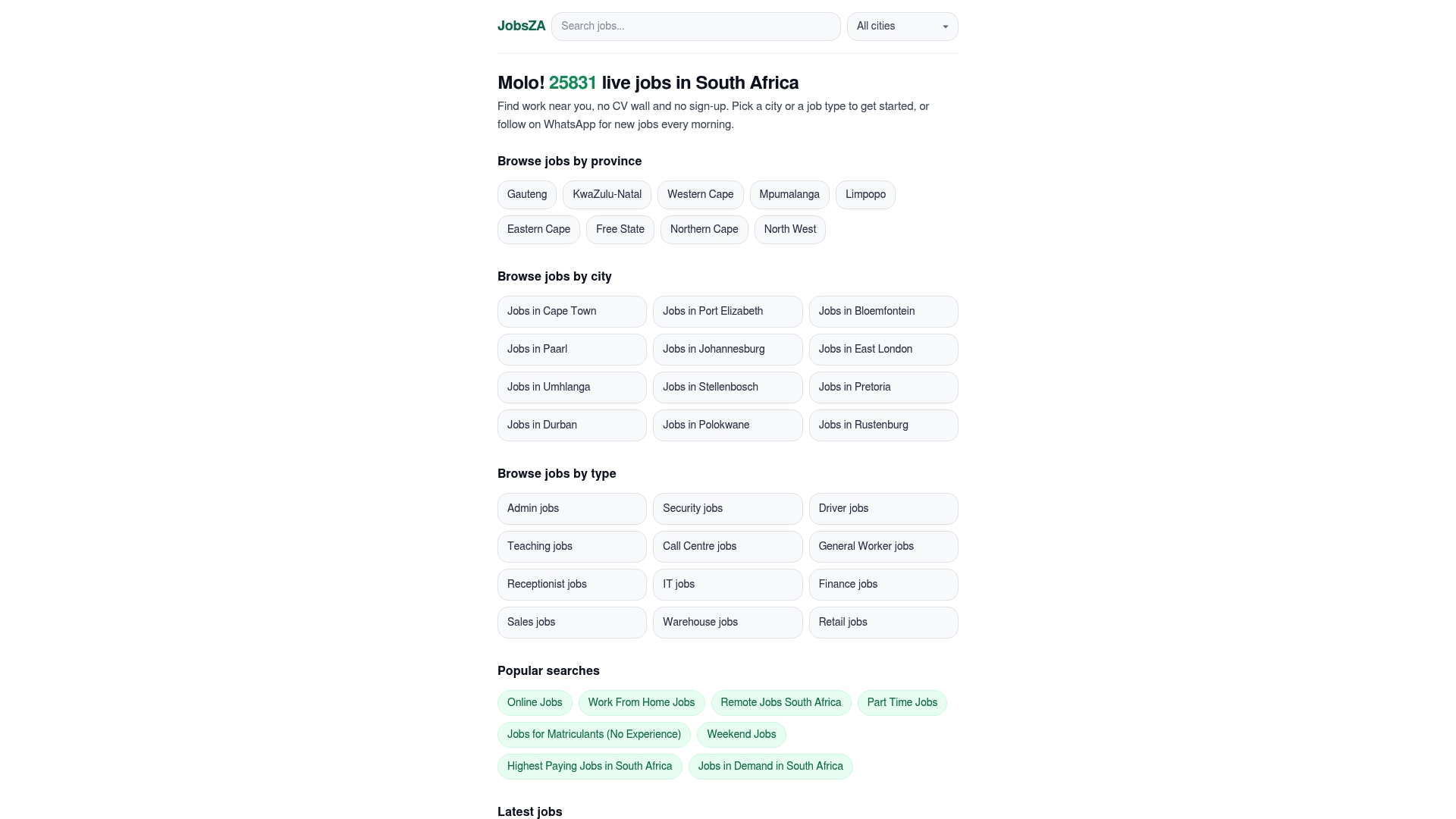
Findjobsza takes a different approach. No CV upload, no account creation. Visit Findjobsza, choose WhatsApp alerts, and confirm your phone number. Every morning you receive a curated list of new South African vacancies directly in WhatsApp, covering categories like online jobs, weekend jobs, remote jobs, and admin roles. For job seekers on prepaid data plans, this is a practical advantage: WhatsApp messages consume a fraction of the data that an HTML email digest does.

Channel comparison
| Channel | Typical frequency | Account required | Best use case |
|---|---|---|---|
| Immediate / daily / weekly | Yes (most portals) | Detailed listings with full job descriptions | |
| SMS | Daily / weekly | Sometimes | Low-data fallback; fast delivery on any network |
| Messaging app (WhatsApp) | Daily (morning) | Phone number only | Low-data, fast, mobile-first South African job seekers |
For a low-data job search, WhatsApp and SMS alerts are the most practical options. Configure email alerts to plain-text format where the portal allows it, and set up alerts on institutional Wi-Fi so the initial configuration does not eat into your mobile data.
Why job alerts matter more than most people realise
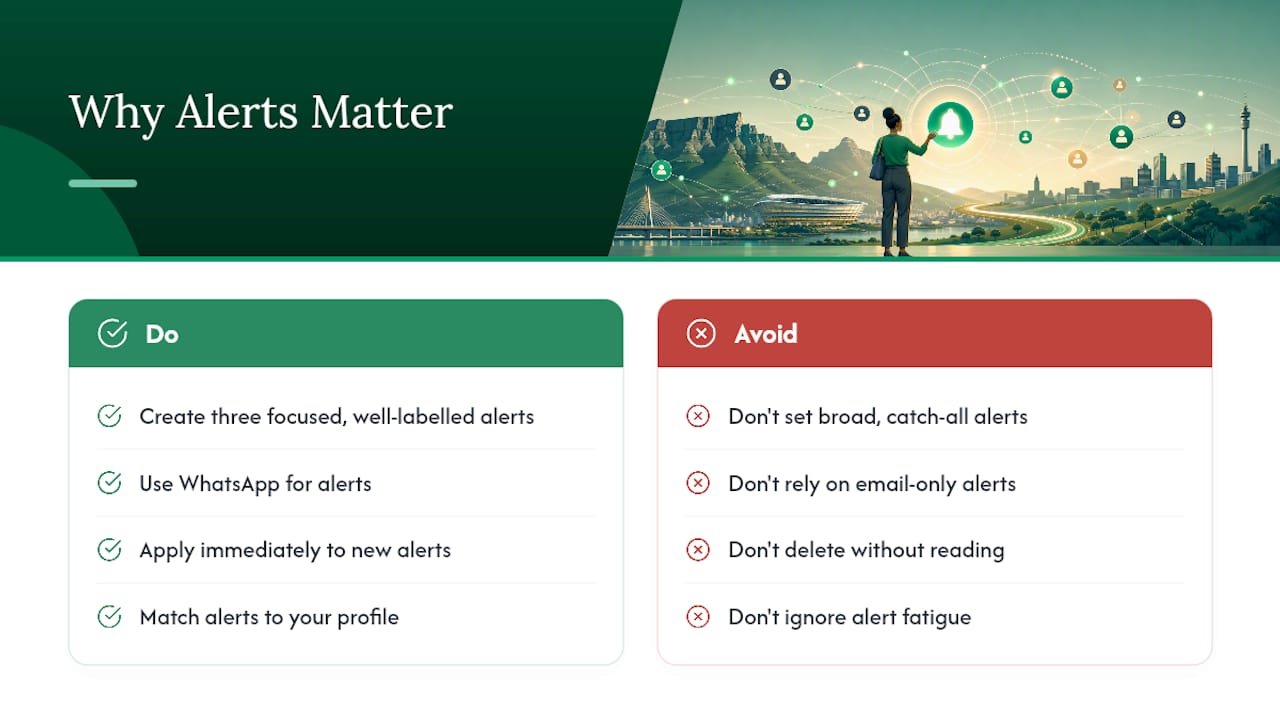
Most job seekers treat alerts as a convenience feature. They are actually a competitive edge. Recruiters in South Africa screen applications on a rolling basis, which means the first ten applicants to a role often get reviewed before the job has even been widely shared. An alert that fires at 6 AM and lands in your WhatsApp by 6:05 AM puts you ahead of everyone who checks the board manually at lunch.
The other thing people underestimate is alert fatigue from poorly configured searches. A broad alert that sends 40 irrelevant listings a day trains you to ignore it. Within two weeks, you are deleting without reading. The fix is not fewer alerts; it is narrower, better-labelled ones. Three tight alerts beat one wide one every time, and the GoNextJob analysis of alert effectiveness backs this up: well-configured, profile-matched alerts reduce manual searching and increase early-application rates.
South African job seekers also have a channel advantage that most global guides ignore. WhatsApp penetration in South Africa is exceptionally high, and platforms like Findjobsza have built their alert delivery around it. If you are still only using email alerts, you are leaving a faster, lower-friction channel unused.
Findjobsza WhatsApp alerts: subscribe in three steps
Findjobsza is built for exactly the situation this article describes: you want fast, local, relevant job listings without the friction of CV uploads, lengthy registrations, or heavy HTML emails eating your data.
Three steps to subscribe:
- Visit Findjobsza and select the WhatsApp alerts option.
- Confirm your phone number. No CV, no profile form.
- Every morning, a curated list of new South African vacancies arrives in your WhatsApp, with quick-apply links included.
You can browse by category too: online jobs, remote roles, and in-demand positions all have dedicated pages. To manage WhatsApp alert noise, mute the notification sound and check the list once each morning rather than reacting to each message as it arrives.
Sources
- Job Hunting Made Easier - ICB
- Create and manage email alerts - Google Careers Help
- Why Job Alerts Work: Complete Expert Guide - GoNextJob
Contact the platform’s support team directly when spam-filter fixes and validation-link checks have not resolved a missing-alert issue after 48 hours.
FAQ
How do I turn on a job alert?
Run a search on any job board, then click “Create alert,” “Save search,” or “Activate job alert.” Most platforms then send a confirmation email with a validation link you must click to activate delivery.
Are job alerts legitimate and worth using?
Yes. Well-configured alerts reduce manual searching and put you among the first applicants, which matters because recruiters in South Africa typically screen on a rolling basis. The key is keeping alerts narrow and relevant rather than broad.
What is the best job alert option for South African job seekers?
Findjobsza’s WhatsApp alerts are among the most practical for South African conditions: daily delivery, no CV required, and low data usage. For broader coverage, combine WhatsApp alerts with saved searches on two or three additional portals.
How do I use Google Alerts or Google Careers for job searching?
Go to Google Careers, run a job search, and click “Turn on” under the alert option. You can then choose daily or weekly delivery frequency from the alert settings.
Why am I not receiving job alert emails?
Check your spam and promotions folders first, then confirm you clicked the platform’s validation link. If alerts still do not arrive, verify that your notification permissions are enabled at the OS level and that your search criteria are not too narrow to return any matches.